Skip to tools
HomeAll ToolsGuides
Categories
More
FAQAboutContact
Free IT utilities & tools

Powerful IT Tools for Everyday Problems

Discover practical tools to troubleshoot, analyse, secure and optimise your digital environment.

  • Free to use
  • No sign-up required
  • Windows apps & online tools
  • Built by an IT professional

Featured Tools

Flagship apps and utilities, handpicked.

View All Tools

Browse by Category

Find tools by what you need to do.

All Tools

Windows Applications

Download and run — single .exe files, no installer. Windows 10/11.
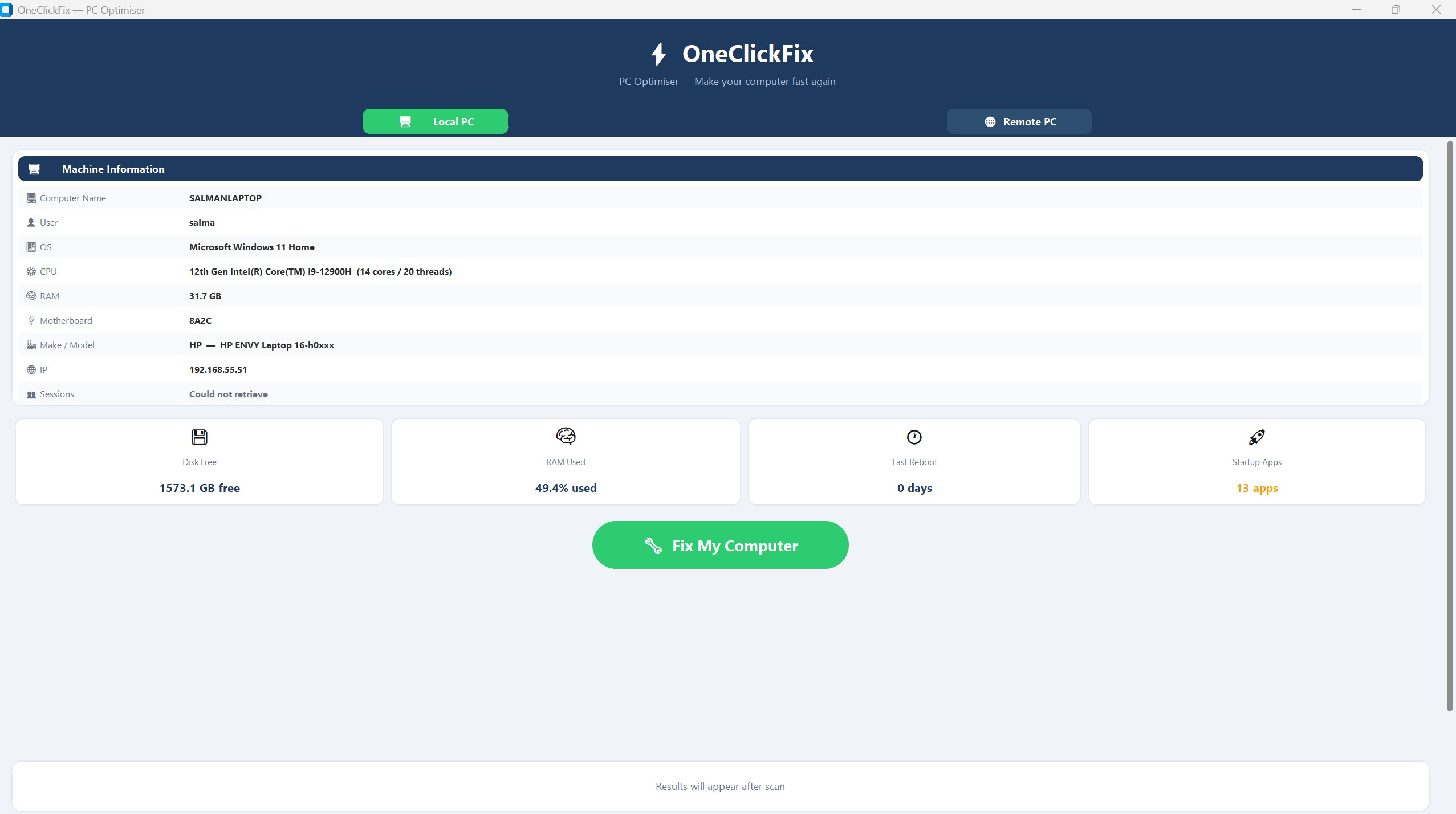
OneClickFix main
🔍 Click to enlarge
Main Screen — PC snapshot at a glance
OneClickFix results
🔍 Click to enlarge
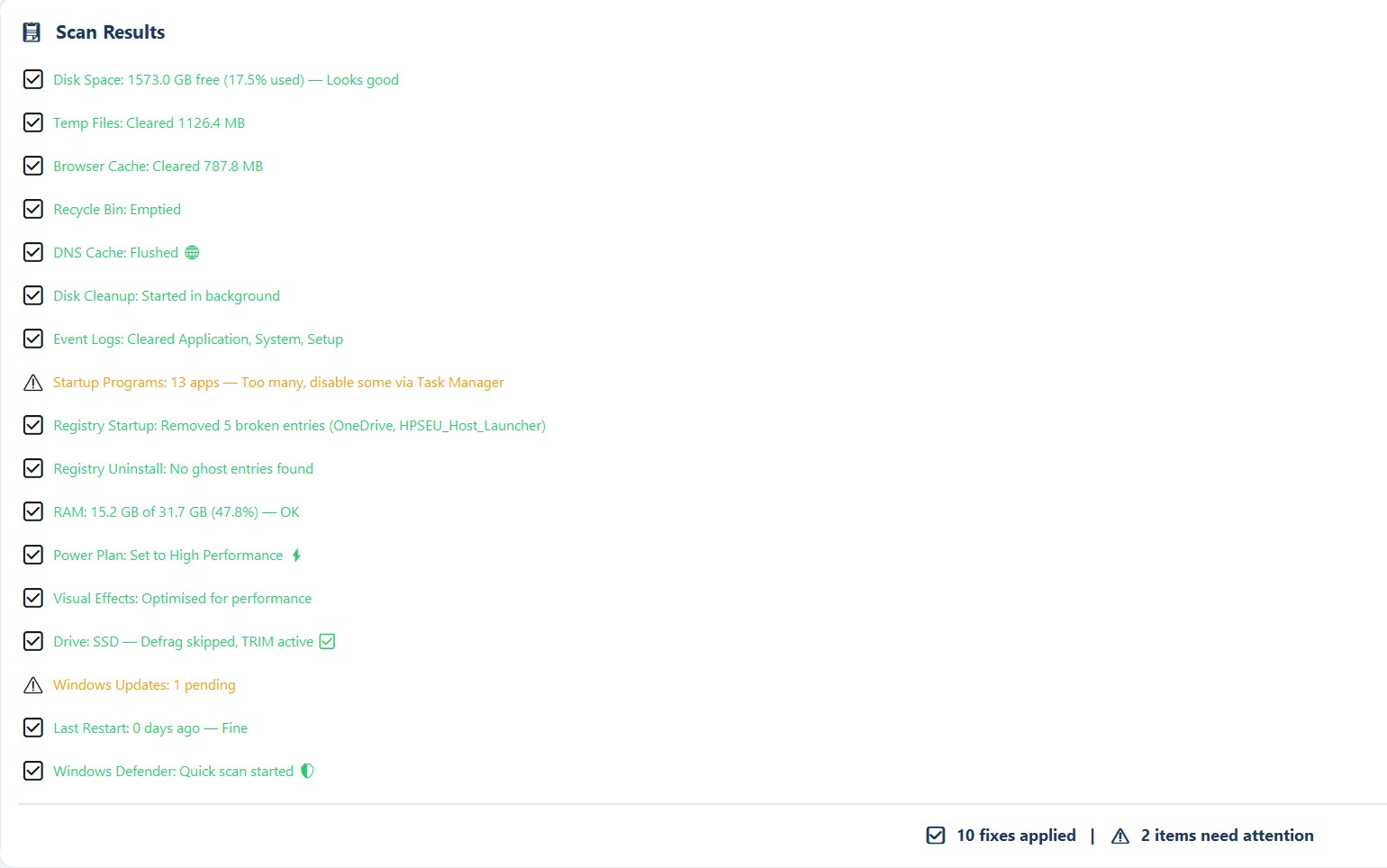
Scan Results — Full fix report with health score
OneClickFix remote
🔍 Click to enlarge
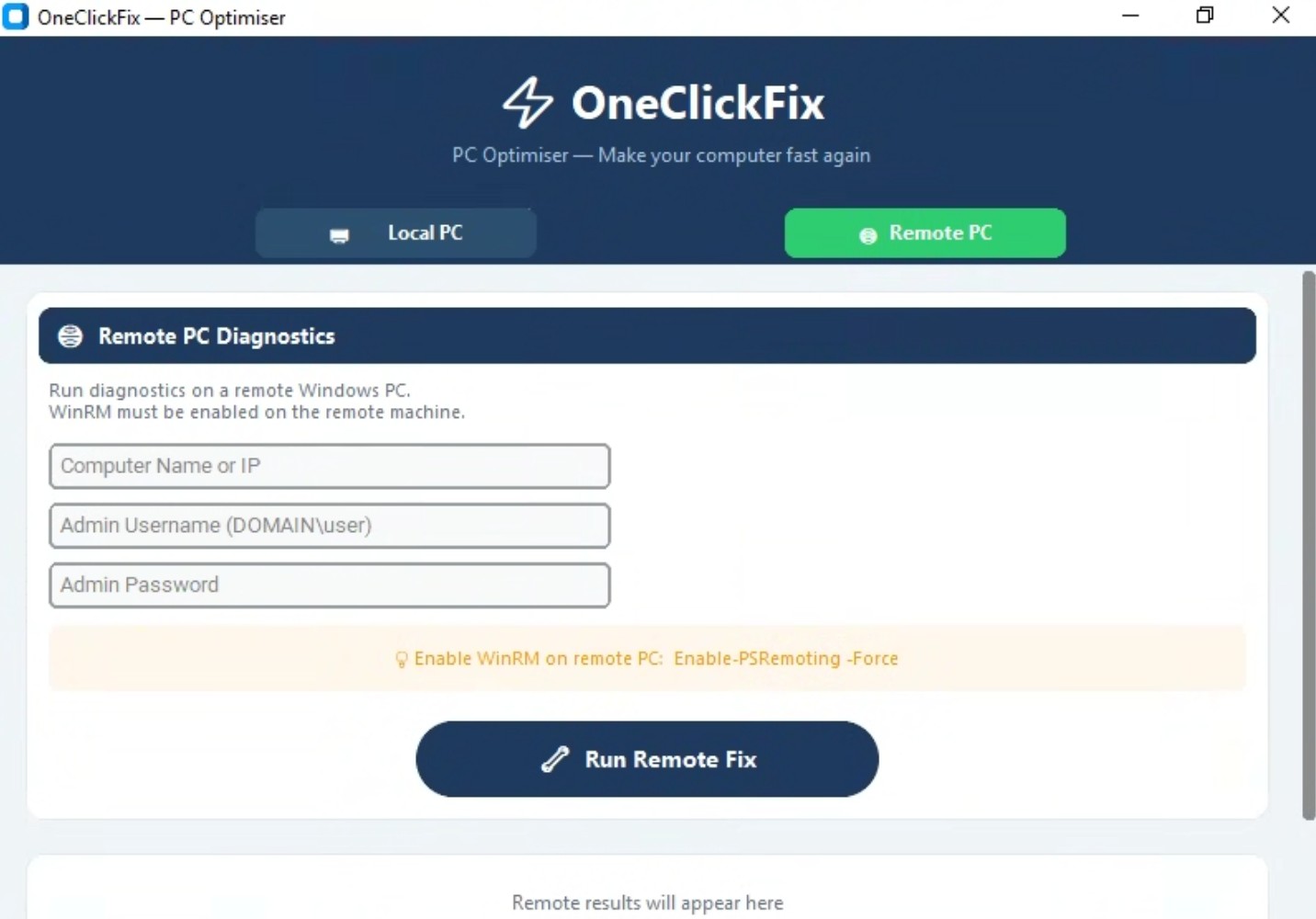
Remote PC Fix — Run fixes on any networked machine
OneClickFix can connect to any Windows machine on your network and run all 17 fixes remotely.

1
Enable WinRM on the remote PCEnable-PSRemoting -ForceRun once in PowerShell as Administrator on the remote machine
2
Allow WinRM through the firewallnetsh advfirewall firewall add rule name="WinRM" dir=in action=allow protocol=TCP localport=5985Only needed if Windows Firewall is blocking port 5985
3
Enter credentials in OneClickFixComputer Name or IP | DOMAIN\username | PasswordUse domain admin credentials
4
Click Run Remote FixOneClickFix runs all fixes silently and returns full results in 2-3 minutes
01

Download

Click download. A single .exe file saved to your PC. No installer, no bloatware.

02

Run as Admin

Right-click and choose "Run as administrator" so it has the permissions it needs.

03

Click Fix

Hit the big green button. All 17 checks run automatically in one go.

04

Review Results

See what was fixed, your PC Health Score out of 10, and recommendations.

FAQ

Common Questions

Security, privacy and usage questions — everything you need to know before using any of the tools.

Is it safe to run the Windows tools on my PC? ▾
Yes. The tools only perform safe, well-known Windows maintenance — clearing temp files, flushing DNS, checking startup entries. They never touch system files or make permanent changes. Source code is available on GitHub for full transparency.
Why does Windows show a security warning? ▾
Windows warns about any .exe that isn't signed by a paid code-signing certificate. This is normal for independent tools. Click "More info" then "Run anyway." The tool is completely safe — and the source code is on GitHub if you want to verify.
Do the Windows tools work on Windows 10 and 11? ▾
Yes, both are fully supported. OneClickFix will also flag if your machine is on Windows 10, which reached End of Support in October 2025.
Do I need to install anything? ▾
No. Just download and run the .exe file. Nothing is installed on your system. Delete the file when you're done if you prefer.
Do the Windows tools send any data anywhere? ▾
No. Everything runs locally on your machine. The only external connection is when checking for Windows Updates — which goes directly to Microsoft servers, not ours.
Is the Microsoft 365 Tenant Audit tool safe to use? ▾
Yes. It uses Microsoft's official OAuth authentication — the same login flow used by Microsoft's own admin tools. You sign in directly with Microsoft, not through our site. We never see or store your password.
What permissions does the M365 scanner request? ▾
Read-only permissions only — Users, Directory, MFA methods, Sign-in logs, Conditional Access policies, Secure Score, SharePoint settings and Intune devices. It cannot make any changes to your tenant. You can review and revoke permissions at any time in your Azure AD enterprise applications.
Does the scanner store or send my tenant data anywhere? ▾
No. The scanner runs entirely in your browser. Data is fetched directly from Microsoft Graph API to your browser and never passes through our servers. Nothing is stored, logged or transmitted anywhere else. Close the tab and the data is gone.
Do I need to be a Global Admin to use the scanner? ▾
You need an account with sufficient read permissions. Global Admin works, but a Security Reader or Global Reader role is enough for most checks. Some sections like Intune devices may need additional roles assigned.
How do I revoke the scanner's access after use? ▾
Go to Microsoft Entra ID (Azure AD) → Enterprise Applications → search for "SalmanIT M365 Scanner" → click Delete or Revoke permissions. This immediately removes all access. You can also click Sign Out in the scanner itself which clears the session token.
Do the online tools upload my data to a server? ▾
No. All online tools — including the Image Compressor, QR Generator and Password Generator — run entirely in your browser. Nothing is uploaded or transmitted. Your files and data never leave your device.
Who built these tools? ▾
Built by Salman Tariq, a Microsoft 365 & Cloud Infrastructure Expert with 25+ years of experience. Specialising in Microsoft 365, Azure, AWS, Google Workspace, cybersecurity and AI — building practical tools and solutions for the modern workplace.
About

Who Built This?

ST

Salman Tariq

Microsoft 365 & Cloud Infrastructure Expert · 25+ Years

Hi, I'm Salman — an IT professional who got tired of the same problems slowing people down every day. So I built tools to fix them. 25+ years in the industry, Microsoft 365 obsessed, and still learning something new every week. I work with Azure, Google Workspace, AWS and enterprise infrastructure platforms to support, manage and improve IT systems.

My core expertise includes Microsoft 365, Exchange migrations, Microsoft Entra ID (Azure AD), identity and access management, MFA/2FA, Conditional Access, endpoint management and Zero Trust security frameworks — across Azure, AWS and Google Workspace environments.

I have a strong and growing focus on AI and AI Agents — particularly in how they can transform IT operations, automate repetitive tasks and improve security. This is where I see the biggest opportunity in the industry right now.

The tools on this site are built to solve real-world IT challenges I've encountered throughout my career. They are designed to be practical, lightweight and useful for IT professionals and everyday users.

Alongside this, I share technical insights and guides covering Microsoft 365, Windows, cloud technologies, AI and general IT best practices based on hands-on experience.

The focus is simple: practical technology, real-world solutions and continuous learning — especially in AI, cloud and modern security.