Our Tools
All Tools
Free tools for everyone — Windows utilities, online tools and more. No signup, no cost.
Windows PC Tools
Download and run — no installation required
● v1.7 — Latest
OneClickFix
Fix, clean and optimise your Windows PC in one click. 17 automated checks — no tech knowledge needed.
- Clears temp files, browser cache & Recycle Bin
- Fixes broken registry startup & uninstall entries
- Flushes DNS & clears Windows Event Logs
- SSD/HDD detection — handles defrag correctly
- Windows Update & Defender health check
- Remote PC fix via WinRM
- PC Health Score out of 10
● v2.4 — Latest
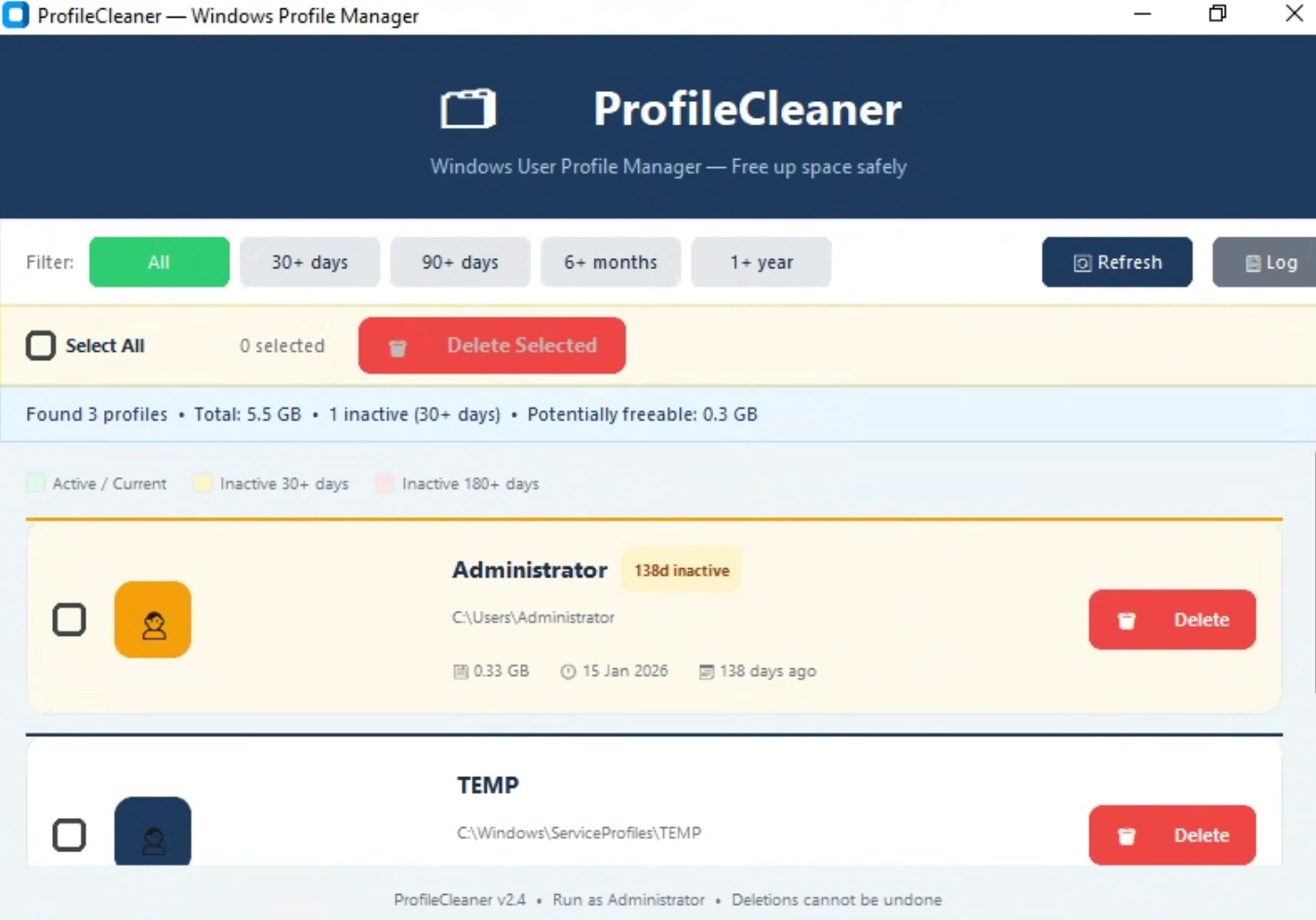
ProfileCleaner
Safely remove old Windows user profiles to free up disk space. Colour-coded with bulk deletion support.
- Lists all profiles with last login date & size
- Colour coded — green (active), amber (30d+), red (180d+)
- Filter by inactivity — 30 days, 90 days, 6 months, 1 year
- Bulk select & delete multiple profiles in one go
- Confirmation before every deletion
- Skips current user & system profiles automatically
● v1.0 — Latest
NetworkInfo
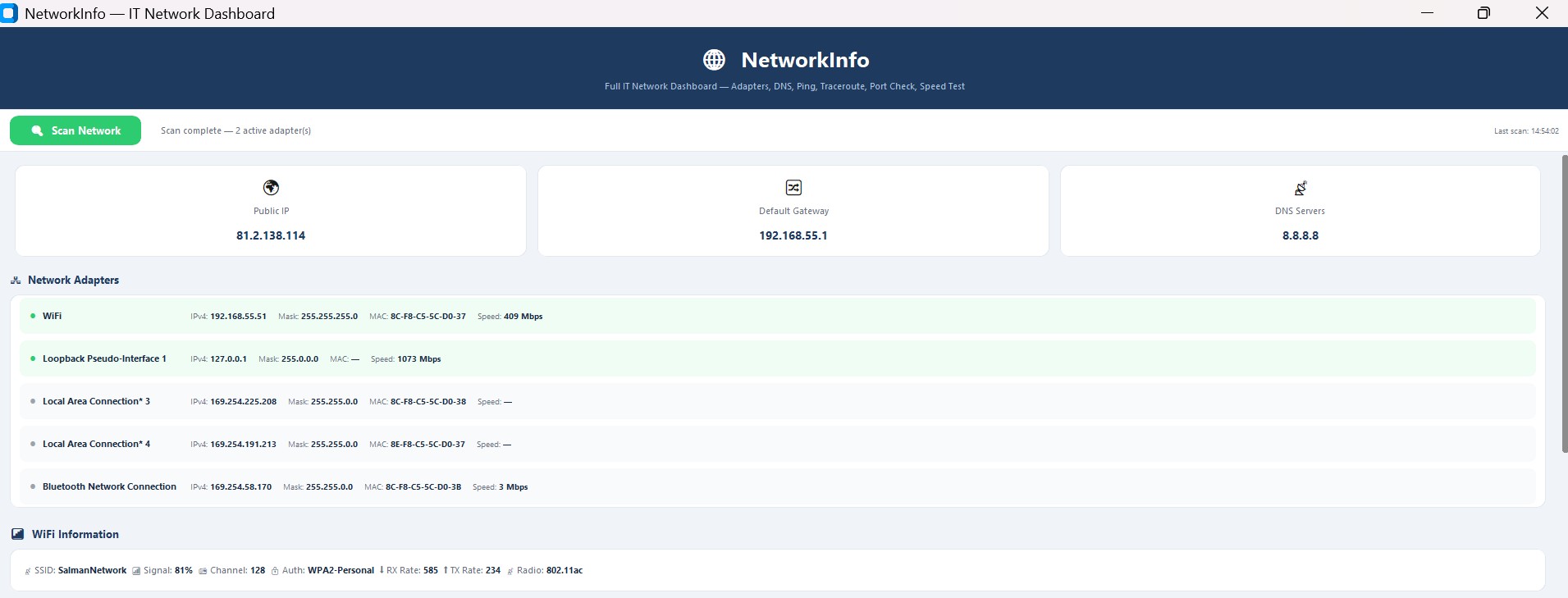
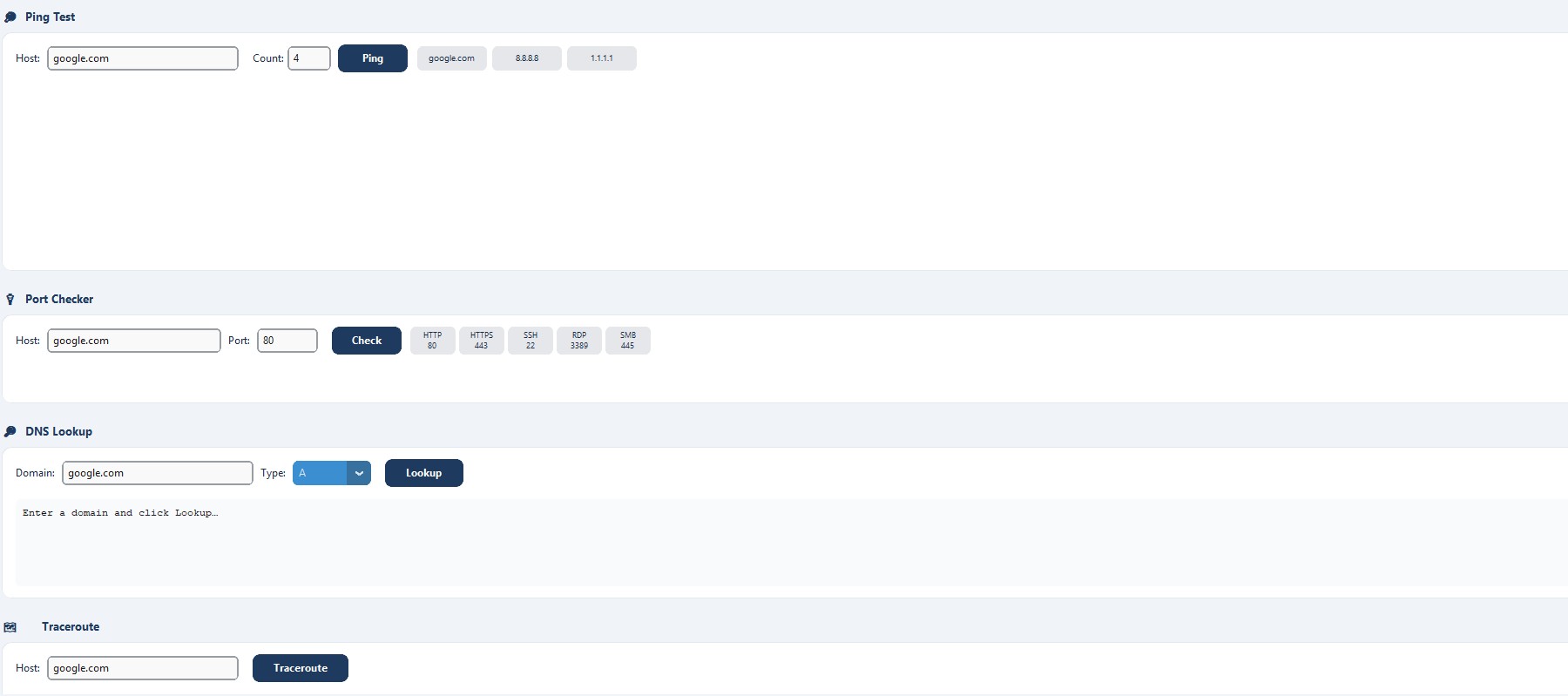
Full IT network dashboard — adapters, DNS, ping, traceroute, port checker, WiFi info and speed test in one tool.
- Public IP, default gateway & DNS servers at a glance
- All network adapters — IPv4, MAC, speed, status
- WiFi info — SSID, signal, channel, auth type
- Ping test with bar chart — avg, min, max, packet loss
- Port checker — HTTP, HTTPS, SSH, RDP, SMB quick buttons
- DNS lookup — A, AAAA, MX, CNAME, TXT, NS, PTR
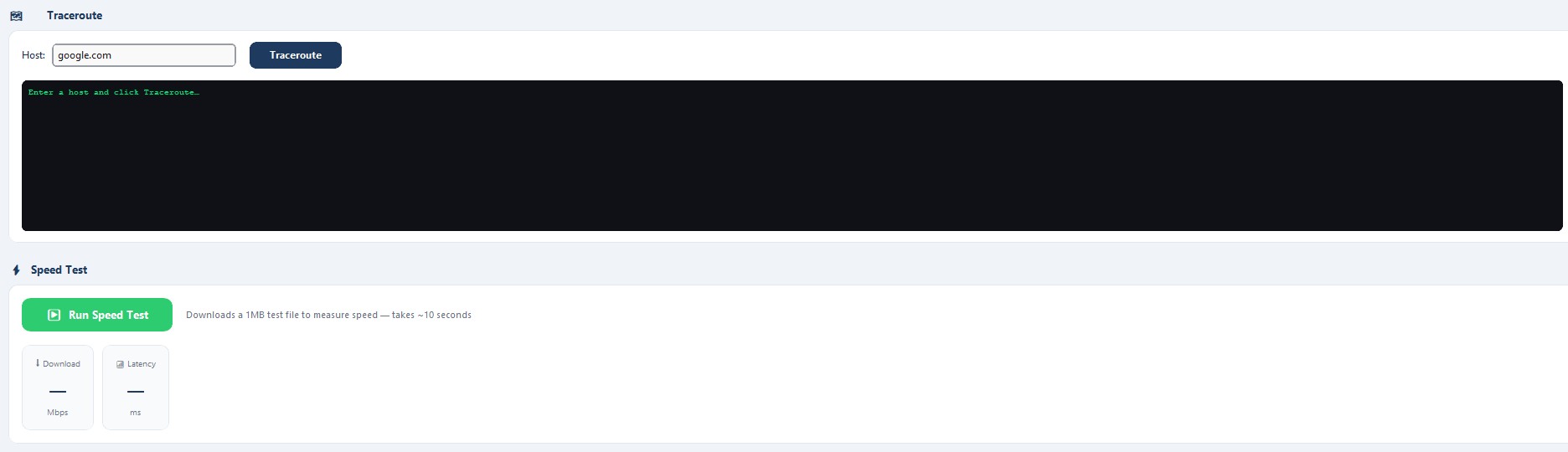
- Traceroute with dark terminal output
- Download speed test
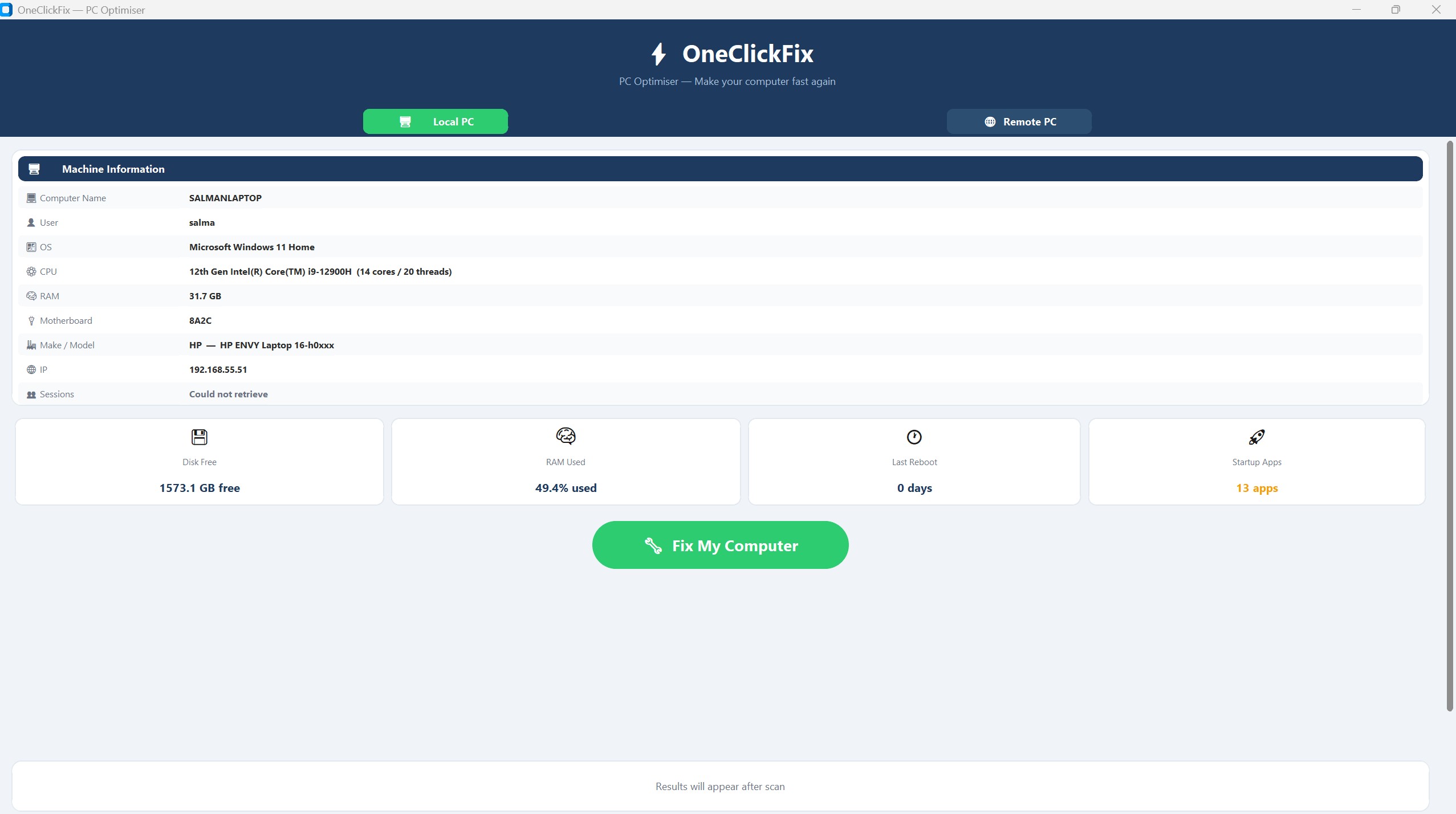
🔍 Click to enlarge
Main Screen — PC snapshot at a glance
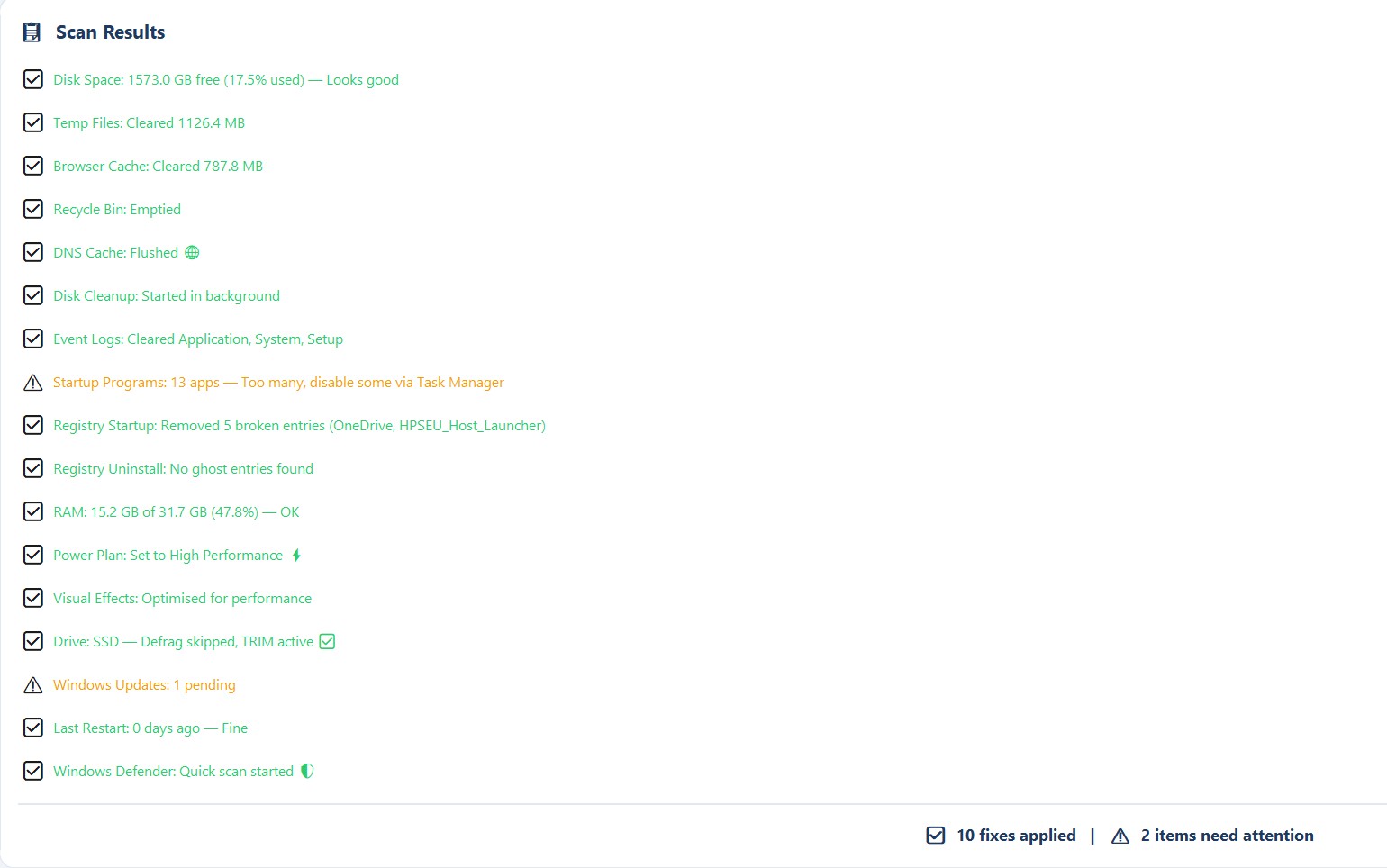
🔍 Click to enlarge
Scan Results — Full fix report with health score
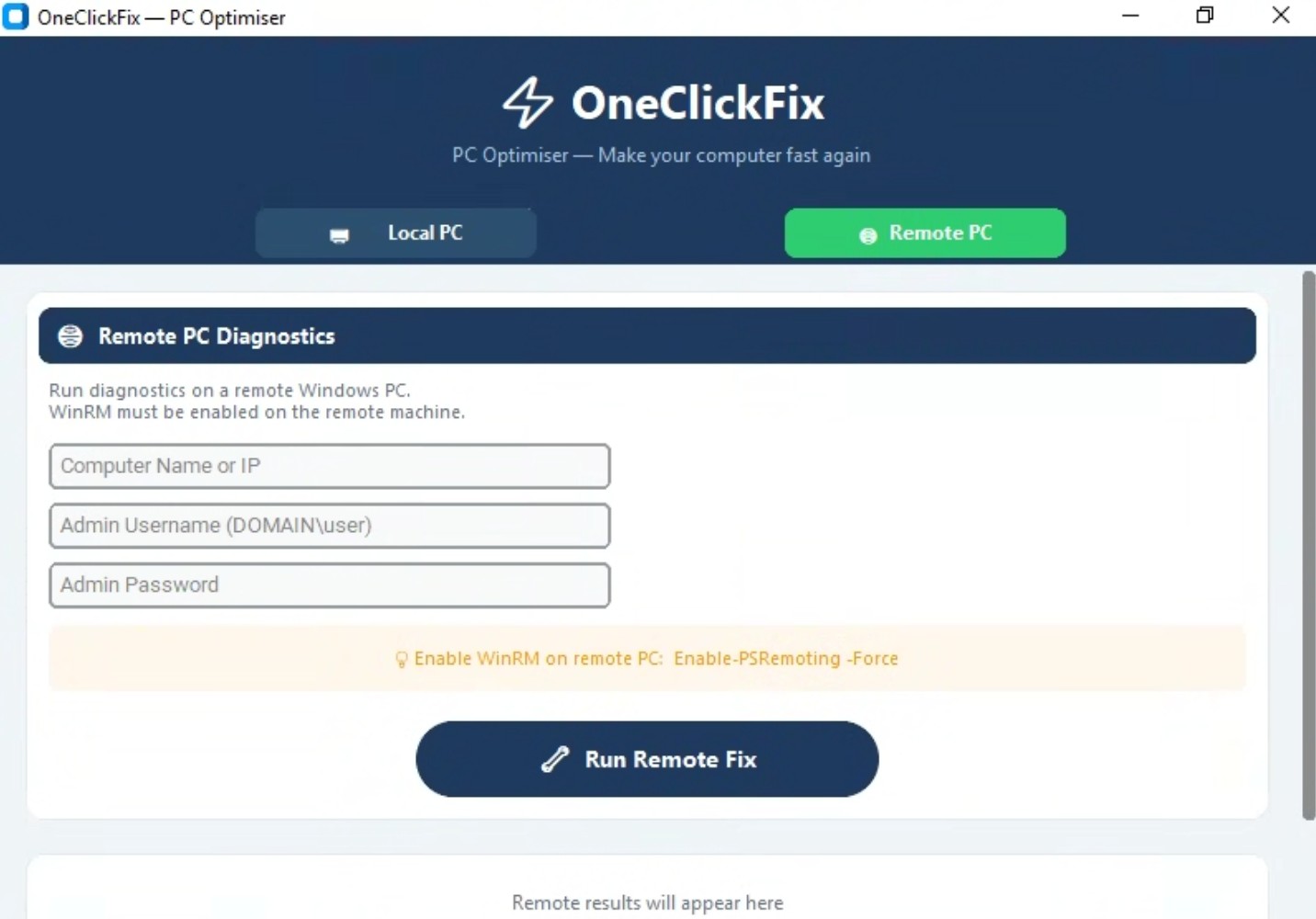
🔍 Click to enlarge
Remote PC Fix — Run fixes on any networked machine
OneClickFix can connect to any Windows machine on your network and run all 17 fixes remotely.
1
Enable WinRM on the remote PC
Enable-PSRemoting -ForceRun once in PowerShell as Administrator on the remote machine2
Allow WinRM through the firewall
netsh advfirewall firewall add rule name="WinRM" dir=in action=allow protocol=TCP localport=5985Only needed if Windows Firewall is blocking port 59853
Enter credentials in OneClickFix
Computer Name or IP | DOMAIN\username | PasswordUse domain admin credentials4
Click Run Remote FixOneClickFix runs all fixes silently and returns full results in 2-3 minutes
01
Download
Click download. A single .exe file saved to your PC. No installer, no bloatware.
02
Run as Admin
Right-click and choose "Run as administrator" so it has the permissions it needs.
03
Click Fix
Hit the big green button. All 17 checks run automatically in one go.
04
Review Results
See what was fixed, your PC Health Score out of 10, and recommendations.
M365 & Security
Microsoft 365 security tools — scan your tenant, analyse policies, identify risks
● Free Online Tool
M365 Security Scanner
Connect your Microsoft 365 tenant and get a full security health report — MFA, admin roles, risky sign-ins, Conditional Access and more.
- MFA status — who has it enabled and who doesn't
- Admin roles — Global Admins and privileged accounts
- Conditional Access policies — enforcement check
- Risky sign-ins — high and medium risk detections
- Microsoft Secure Score out of 100
- SharePoint external sharing settings
- Intune device compliance status
- External mail forwarding detection
- Full user list with licenses — export to PDF
● Free Online Tool
CA Policy Explainer
Paste an Entra Conditional Access policy JSON and get a plain English explanation — who it applies to, what it requires, exclusions and more.
- Paste raw CA policy JSON from Entra admin center
- Plain English summary of users, apps, conditions and controls
- Shows exclusions clearly — guests, groups, admin roles
- Decodes session controls — sign-in frequency, persistent browser
- Great for documentation, audits and explaining to stakeholders
- 100% private — nothing leaves your browser
● Free Online Tool
JWT Decoder
Paste a JSON Web Token to instantly decode the header, payload and all claims — user details, roles, tenant ID, expiry time, scopes and more. Essential for M365 and API troubleshooting.
- Decodes header, payload and signature parts instantly
- Resolves known Microsoft 365 claims — upn, tid, oid, scp, wids
- Translates directory role GUIDs (wids) to readable role names
- Converts expiry and issued-at timestamps to readable dates
- Flags expired tokens and Global Admin tokens automatically
- 100% private — token never leaves your browser
Email & Network
Diagnose email deliverability, check DNS records, verify DMARC/SPF/DKIM
● Free Online Tool
Email Header Analyzer
Paste raw email headers to trace the full delivery path, check SPF/DKIM/DMARC results, detect suspicious patterns and diagnose deliverability issues.
- Full hop-by-hop delivery timeline with timestamps and delays
- SPF, DKIM and DMARC authentication results
- Spam score parsing (X-Spam headers)
- From/Return-Path/Reply-To domain mismatch detection
- Plain English security findings — phishing indicators flagged clearly
- 100% private — headers never leave your browser
● Free Online Tool
Network Tools
IP lookup, DNS queries, geolocation, ping, reverse DNS, DMARC, SPF, DKIM and more — all in your browser.
- Your public IP with city & ISP info
- IP geolocation — country, region, timezone, ASN
- DNS lookup — A, AAAA, MX, CNAME, TXT, NS
- Full DNS scan — all record types at once
- Email security — MX, SPF, DMARC, DKIM checker
- Reverse DNS, latency test, multi-host ping
Utilities
Everyday tools — image compressor, QR codes, passwords, SEO checker and more
● Free Online Tool
QR Code Generator
Create QR codes instantly for URLs, text, email, phone and WiFi. Download as PNG or SVG.
- Supports URL, text, email, phone & WiFi
- Custom colours and size
- Download as PNG or SVG
- Works entirely in your browser — nothing sent anywhere
● Free Online Tool
Password Generator
Generate strong, secure passwords instantly. Nothing stored or sent anywhere — 100% browser-based.
- Customisable length up to 64 characters
- Toggle uppercase, lowercase, numbers & symbols
- Password strength indicator
- Generate up to 10 passwords at once
- Quick presets — Easy, Strong, Very Strong
● Free Online Tool
Image Compressor
Compress JPG, PNG and WebP images instantly. Nothing uploaded to any server — 100% private, free and unlimited.
- Compress JPG, PNG and WebP — batch process multiple files
- Adjustable quality slider — 10% to 95%
- Convert format — save as JPEG, PNG or WebP
- Resize by max width — great for web optimisation
- Download individually or all as a ZIP
- Nothing uploaded — all processing done in your browser
● Free Online Tool
Website Health & SEO Checker
Check title tags, meta descriptions, headings, image alt text, robots.txt and more — get an instant health score with clear findings.
- Checks title tag and meta description length
- Verifies heading structure (H1-H6) is logical
- Flags images missing alt text
- Checks robots.txt, sitemap.xml, HTTPS and viewport meta
- Paste HTML manually if automatic fetch is blocked
- Instant health score out of 100 with clear findings
● Free Online Tool
Letterhead Generator
Design a professional letterhead with your logo, brand colours and contact details. Multiple templates, live preview, print to PDF or export HTML.
- Multiple templates — Modern, Classic, Minimal, Bold Banner
- Upload your logo or use auto-generated initials monogram
- Custom brand colours, fonts, and layout alignment
- Live preview updates as you type
- Print directly to PDF or export as HTML file
- Nothing uploaded — runs entirely in your browser
● Free Online Tool
Invoice Generator
Create professional invoices with your logo, line items, VAT calculation and payment terms. Live preview, custom colours, download as PDF.
- Upload your logo and choose brand accent colour
- Unlimited line items with quantity and unit price
- Automatic VAT, discount, and shipping calculations
- GBP, USD, EUR, CAD and AUD currency support
- Bank payment details and notes / terms section
- Print to PDF directly from your browser — nothing uploaded